
WhatsApp notifications for your WooCommerce store
Customers get an official WhatsApp message when their order is confirmed, shipped or delivered. Set it up in a few minutes, with no code.
Free download. In WordPress, upload it under Plugins → Add New → Upload Plugin.
- 14-day free trial
- No credit card needed
- Multi-language
Set up in four steps
-
1
Create your account
Start the free trial and connect your WhatsApp Business number with Meta's official sign-up.
-
2
Install the plugin
Download the plugin from this page. In WordPress, go to Plugins → Add New → Upload Plugin, choose the file, then install and activate it.
-
3
Connect your store
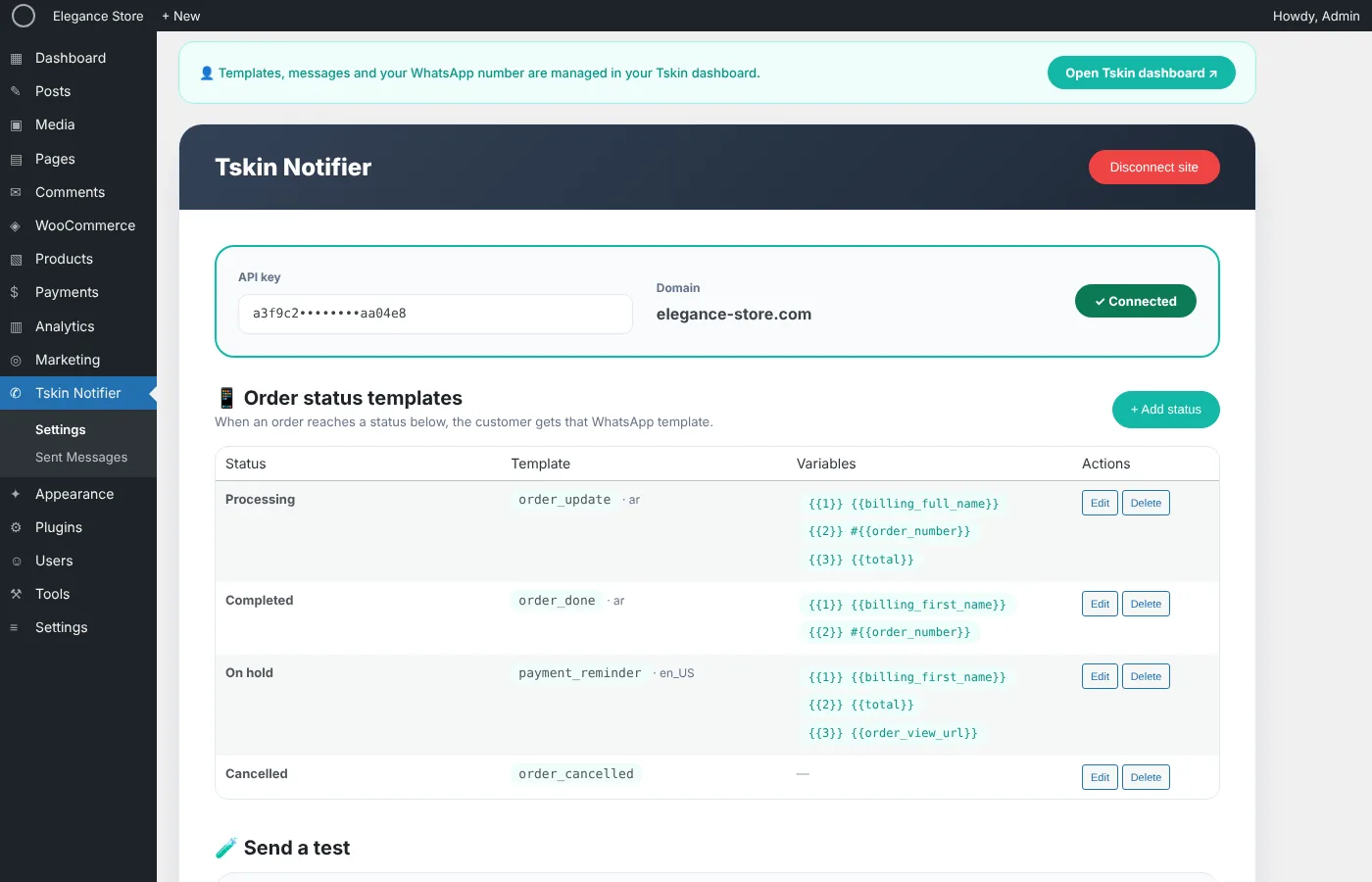
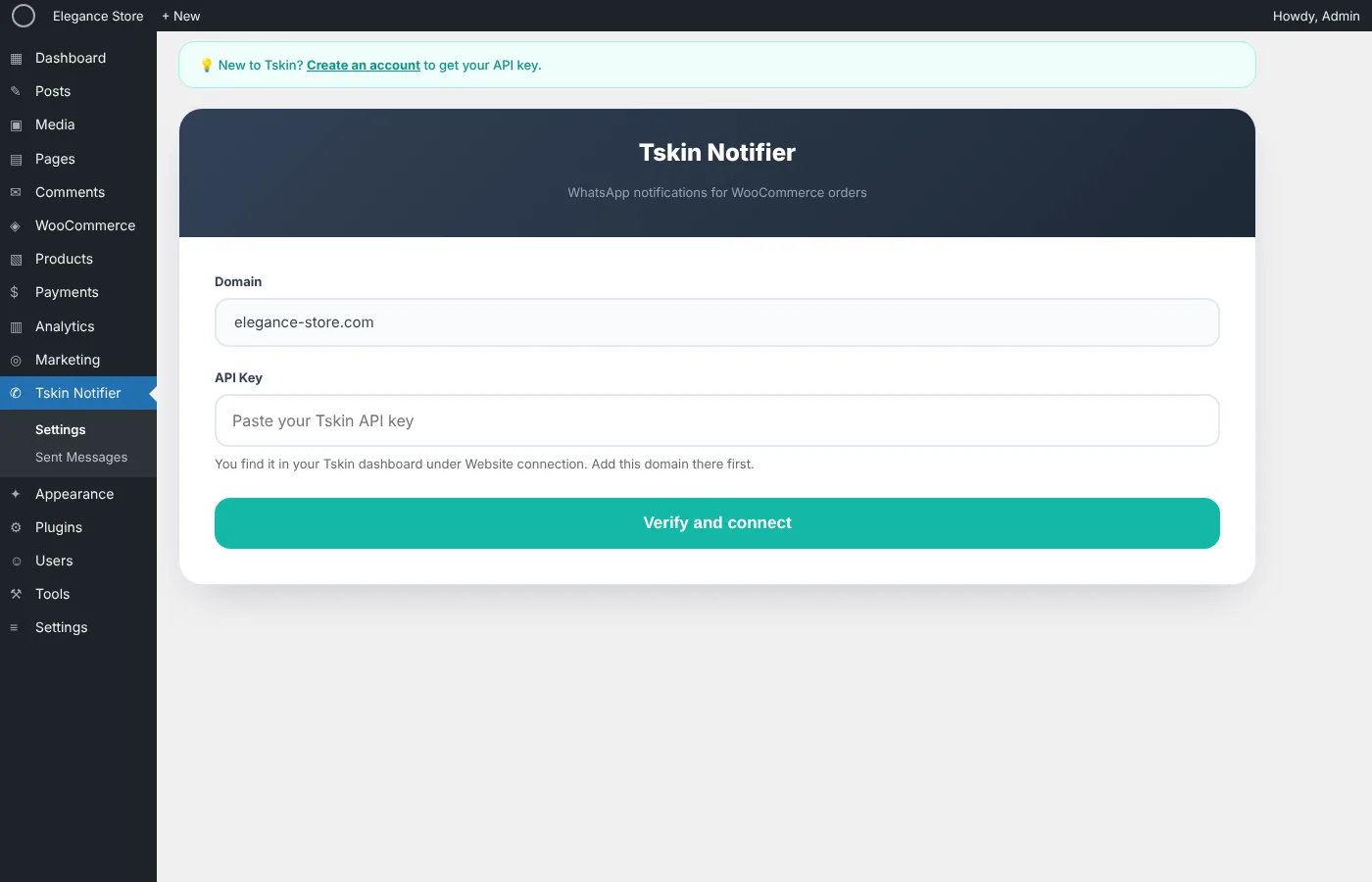
Copy the API key from your dashboard under Website connection, paste it in the plugin and click Verify and connect.
-
4
Choose your messages
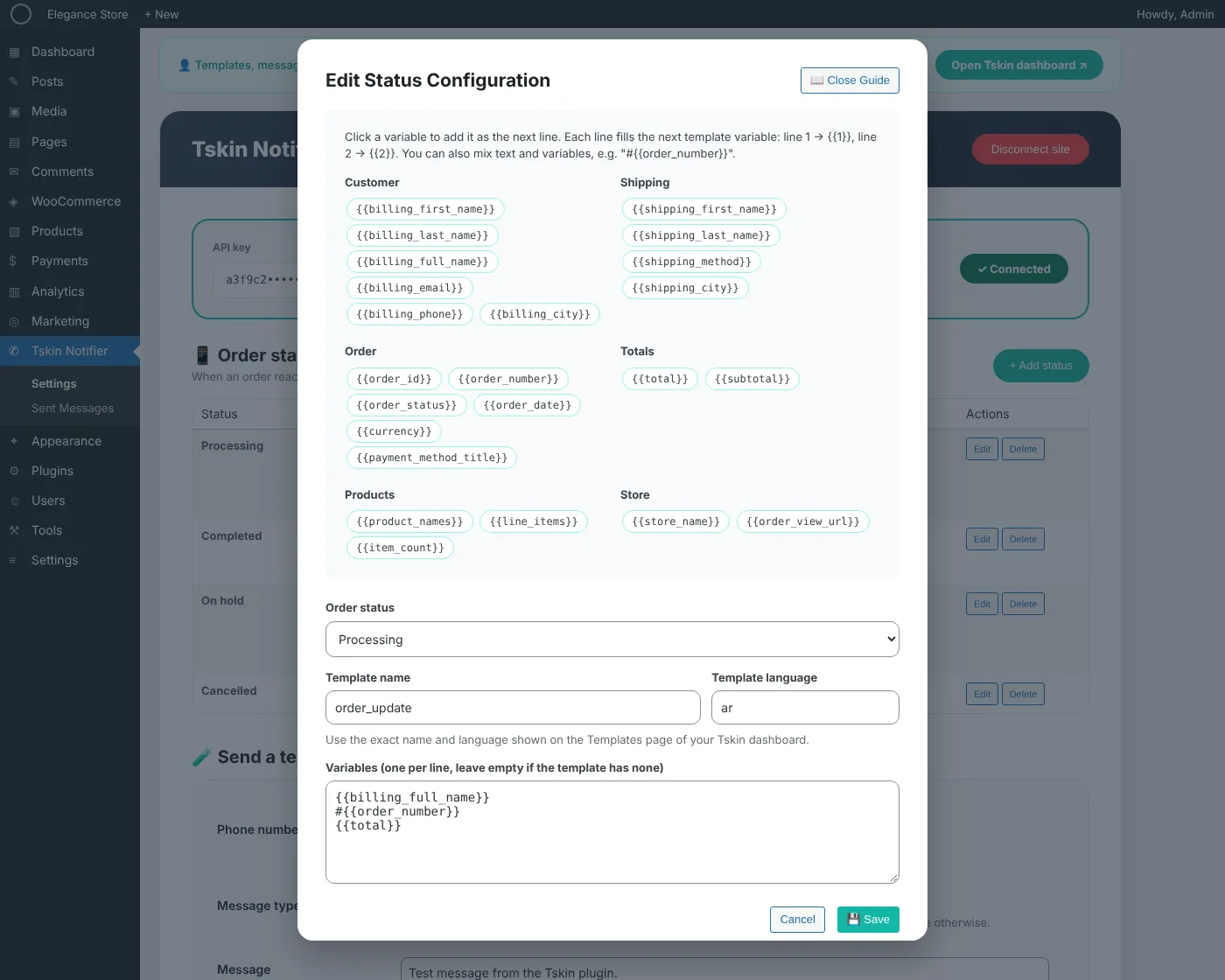
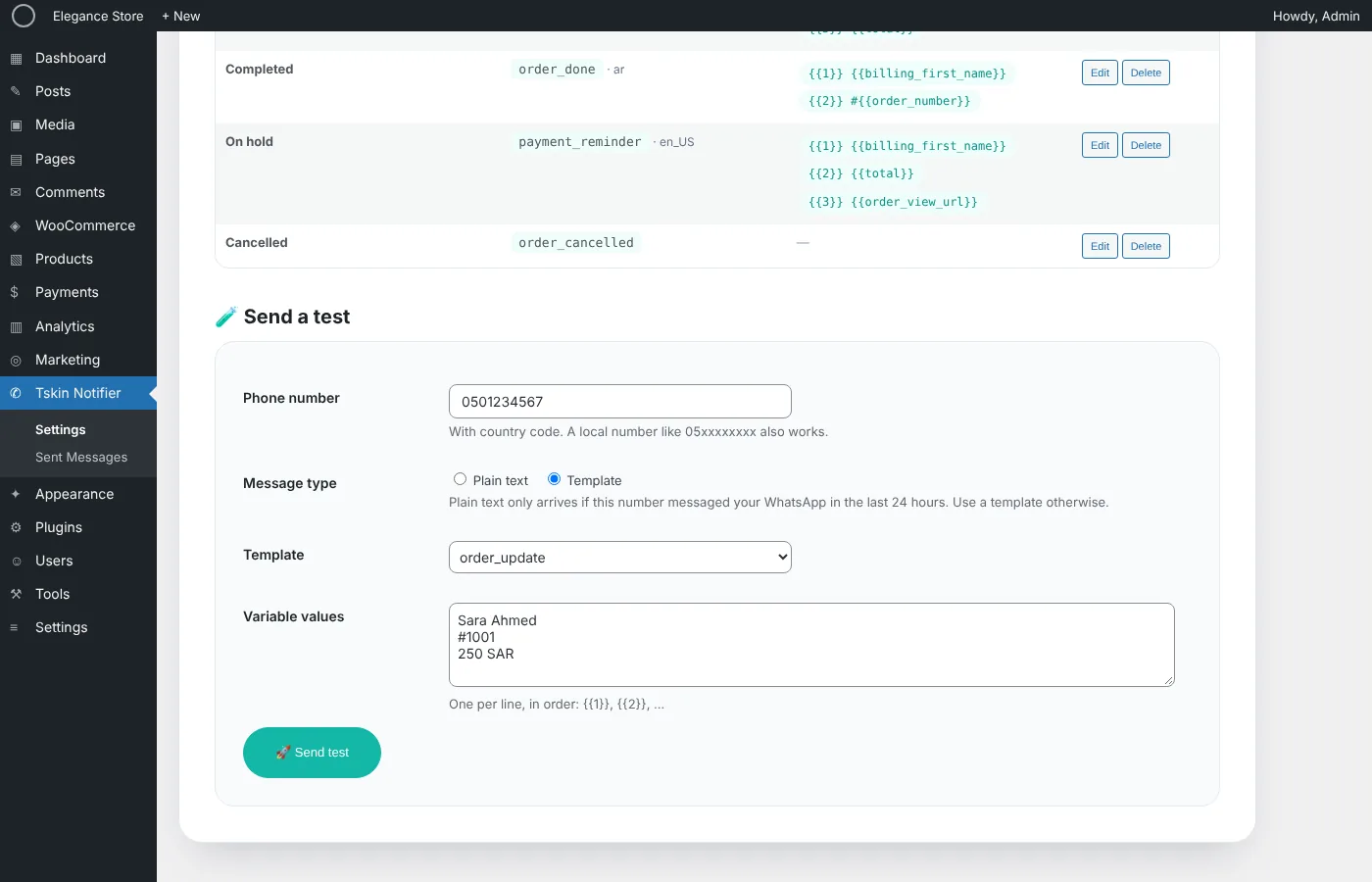
Pick a WhatsApp template for each order status, add order details as variables, and send a test.
What the plugin does
Everything happens on its own once it's set up.
A message for every status
Processing, shipped, completed, cancelled or your own custom statuses. Each one can have its own template.
Order details in every message
Customer name, order number, total, products, shipping city and more fill the template automatically.
Local numbers just work
Numbers typed like 05xxxxxxxx are turned into international format using the customer's country.
Never sent twice
Each status is sent once per order, even when WooCommerce fires several events for it.
See every message
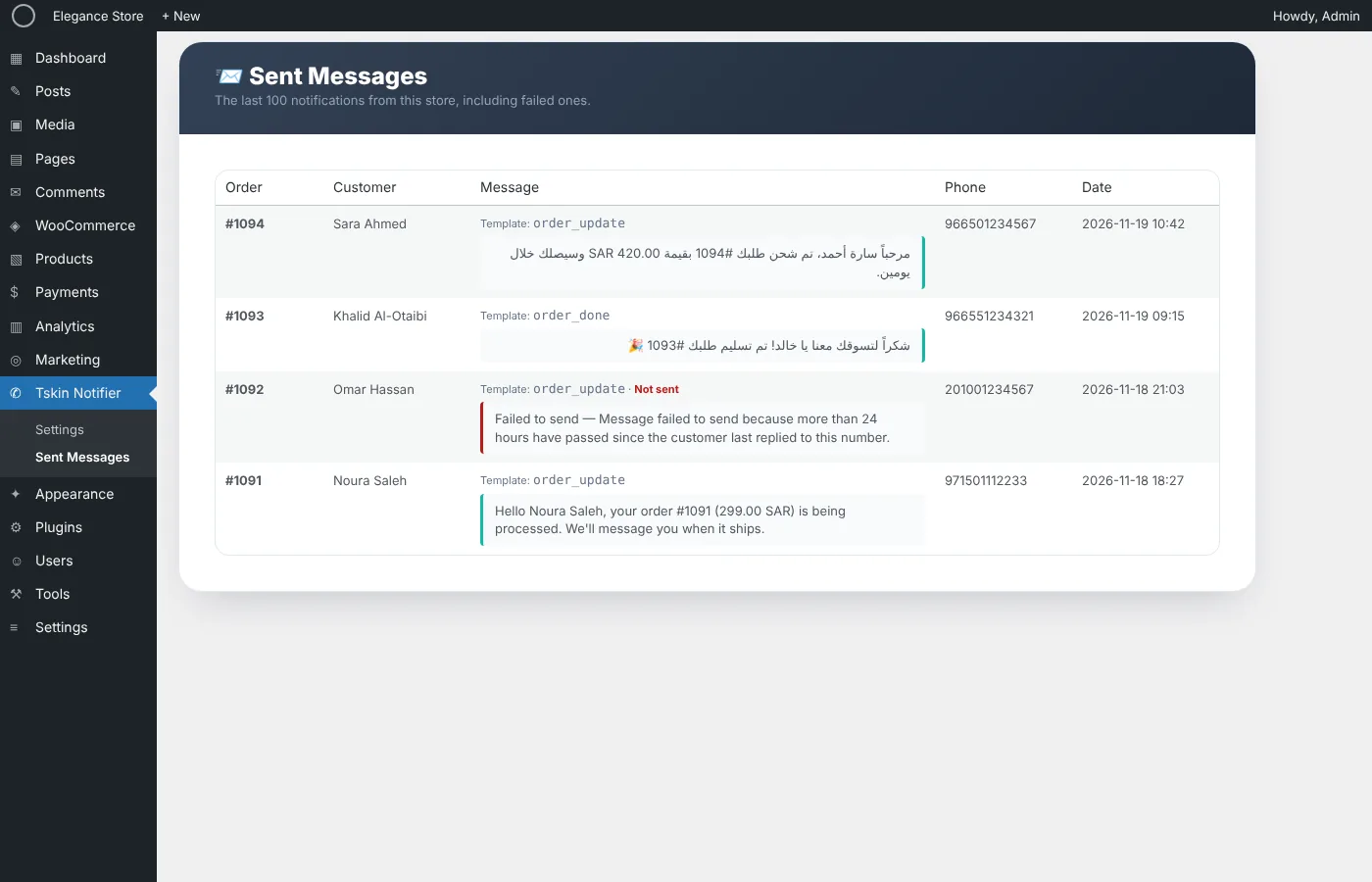
Sent and failed messages are listed in WordPress with the reason, and added to the order notes.
Light and fast
Doesn't slow your store down, and works with WooCommerce High-Performance Order Storage.
Inside WordPress
Questions
Is the plugin free?
Yes, the plugin is free. Sending messages needs a TSKIN subscription, and you can start with a 14-day free trial.
Do I need a WhatsApp Business account?
You need a phone number for WhatsApp Business. You connect it from your TSKIN dashboard in a few clicks, using Meta's official sign-up.
Which messages can I send?
Templates approved by Meta, which you create on the Templates page of your dashboard. WhatsApp only allows templates for messages the customer didn't start.
How do I install it?
Download the ZIP file from this page. In WordPress, go to Plugins → Add New → Upload Plugin, choose the file and click Install Now, then Activate.
Start sending order updates on WhatsApp
Create your account, install the plugin and send your first message today.